
Generating Prototype Tabletop Game Components Using AI

Getting your idea out of your head and onto the table, whether virtual or physical, is the first hurdle a game designer must overcome.
There are many great tools out there that reduce the friction of this process. Dextrous, Component Studio, and Nandeck are fantastic tools specifically designed for this process. Other tools like spreadsheets and Canva are also suitable for prototyping. However, those tools take time to learn, and the effort you have to put in to get prototype components can be substantial before you know if the basic premise even has any merit.
Before we head into this tutorial, where I explain my methods of rapid prototyping, let’s have a brief look into the ethical concerns of AI.
Ethical Concerns
While I hold the position that generating images using AI for prototypes is probably fine, I think it is completely unnecessary and could actually limit the design process due to stealing opportunities for imagination. There are many other ethical concerns with AI, like environmental costs, privacy, perpetuating systemic oppression, giving even more power to tech companies, and of course copyright of the training data.
However, I don’t think this technology is going away, and if you don’t use it, you’re only harming yourself. My approach for component generation uses primarily code, which is likely the least problematic portion of the AI ethical concerns.
That said, I would like to stress, please pay artists for art in the final product.
Code First Approach
Right now, even the best image generation platforms struggle with things like layouts and text. Nano Banana can do some very cool things, but it fails to maintain any kind of consistency over multiple prompts. Add to that the general need for translating data (your card text, icons, costs, etc) to the image, and it’s clear this won’t get you anywhere.
Instead, I rely heavily on the code generation abilities of AI tools. My preference at the time of writing is Gemin, but I am sure Claude and ChatGPT are both fully capable of performing the same tasks.
There are many ways to write code with AI, but for rapid prototyping the easiest tool to use is the canvas inside the regular platform. The canvas feature allows you to create and run small web applications inside your browser, without having to deal with any code related setup.
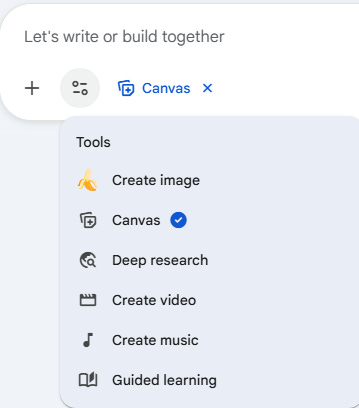
Once selected, you can write a descriptive prompt describing what you want to achieve. The more information you give the model, the better the result is going to be.
Creating Cards for Print or Tabletop Simulator
I’m going to use cards for this process, but it should work in a similar fashion for any board game component. The first step is to define what kind of information we need on the cards. Say we want the cards to have a name, cost, type, and text box.
There are many ways to proceed from here, but for this tutorial let’s have Gemini create a simple web application that allows the following features:
Download an empty CSV file for the structure.
Import a CSV file that defines the cards.
Export to a printable PDF in standard card size.
Export to an image format that you can import into Tabletop Simulator.
Once you know what you want, it is a simple matter of writing the prompt. Simply write down what you need and it will generate the tool.
Here is the prompt I came up with:
Generate a standalone web application that will create card game components in standard card game sizes.
The cards will have a name, cost, type, and a text box for an ability. The types are Creature, Spell, and Artifact, which should have different colors and accents.
Use HTML, CSS, and lucide icons to create the cards.
The UI should allow me to:
Download an empty CSV file for the structure.
Import a CSV file that defines the cards.
Export to a printable PDF in standard card size.
Export to an image format that you can import into Tabletop Simulator.
This is what Gemini came up with:
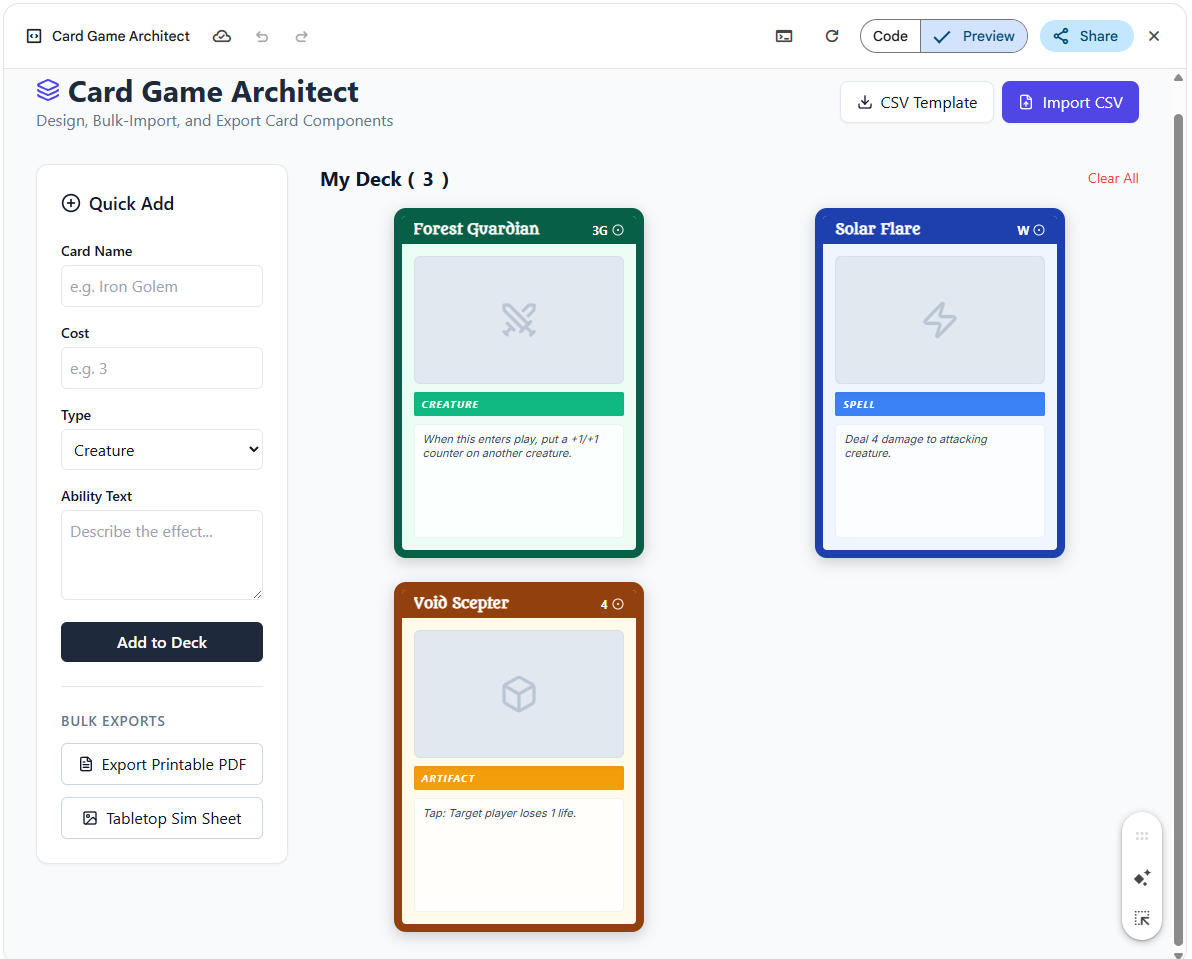
As you can see, it even created a quick add feature I didn’t ask for, which is neat.
You may find that the export feature doesn’t always work on the first try, simply take a screenshot, tell the LLM what isn’t working, and it will attempt to improve it. But for a rapid prototype, this is often enough.
Sandbox Prototype
When you’re working on a card game, importing a deck of cards into Tabletop Simulator and playing around with them is often very low friction. But what if you want to test a tile laying game with various polyominoes?
Well, you can do that in a canvas too. You can simply tell the LLM your vision and it will make an attempt to implement it.
Here is my test prompt:
Generate a standalone web application for prototyping a tile laying game.
Create an infinite “pool” of polyominos of sizes 1-5, and a 7x7 grid where I can place the polyominoes.
Place one star on one cell of each polyomino.
Allow rotating and flipping the polyominos.
Snap the polyominoes to the grid.
Allow deleting polyominoes.
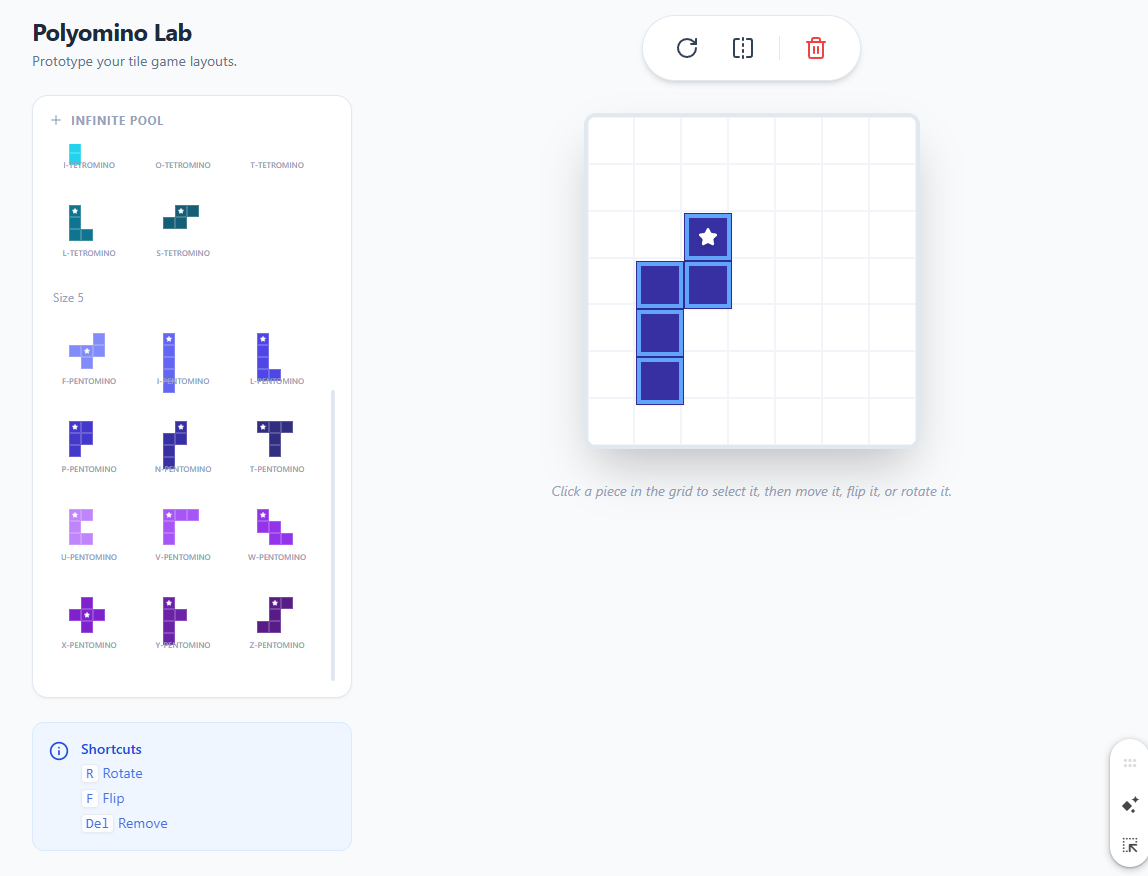
This is much faster than importing tiles into Tabletop Simulator and is ideal for playing around with the shapes and seeing if your idea feels right.
Iterations and improvements
Something you don’t like? Something doesn’t work? Use natural language to tell the LLM what to change. That’s the strength of those tools, they can figure out what you mean when you just say so.
Keep iterating over your ideas or discard them quickly as you didn’t invest much effort into it. These tools really make prototyping rapid. Fail fast, and design your next game.
Check out my games on Timeshapers.com